
Challenge
For ease of use, we can add multiple email accounts to Outlook.
Cause
n/a
Solution
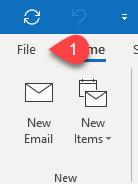
1. Open Outlook & click File (Step 1)
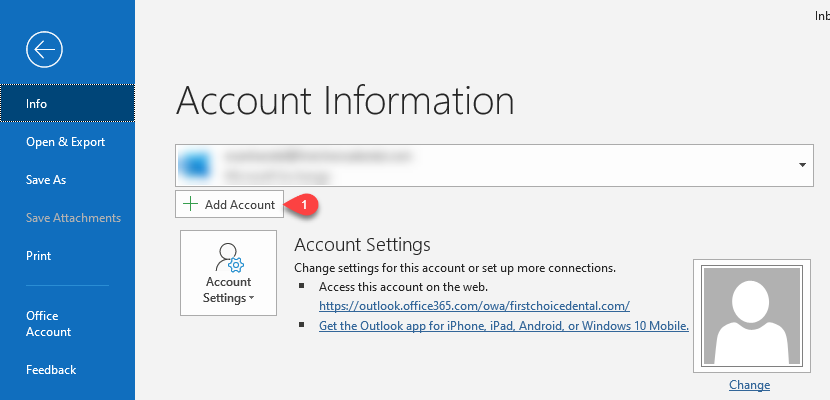
2. Click Add Account (Step 1)
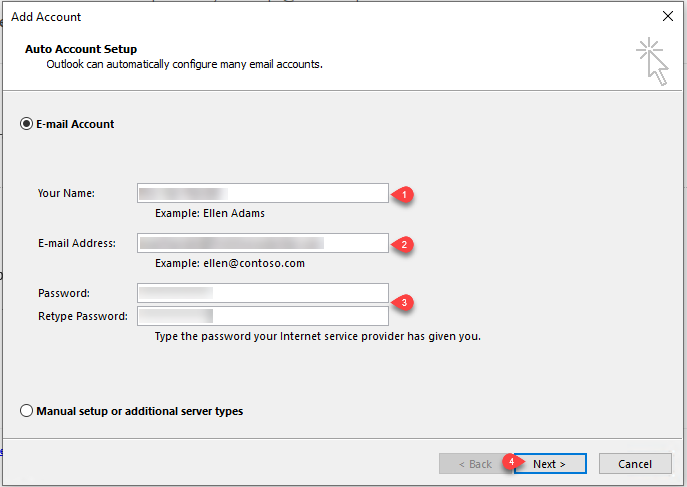
3. Fill in Address Information:
a. Step 1: Fill in descriptive name to appear in Outlook
b. Step 2: Enter Email account to be added
c. Step 3: Enter Password for account twice
d. Step 4: Click Next
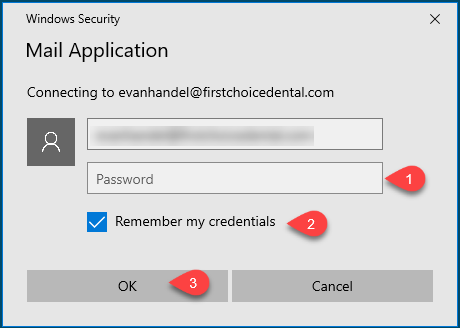
4. Enter password (Step 1) again for account that is being added. If you want to save the password, check the box next to step 2. Click OK (Step 3).
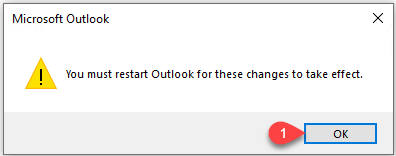
5. Outlook needs to be closed and reopened to display this new account. Click OK (Step 1) then exit Outlook.
6. When Opening Outlook, you'll need to do the same as step 4.
More Information
ENTER MORE INFORMATION IF APPLICABLE - i.e. - Please remember to close out all applications before leaving for the day.
Comments