
Challenge
MiPACS Crashed before images where confirmed to be saved.
Do these steps IMMEDIATELY when MiPACS freezes to increase chances of retaining images.
Cause
MiPACS experienced a software problem and images need to be copied out of a temp directory.
NOTE: You can also download this batch file attached to this document and run that to do the same thing as the guide below.
Solution
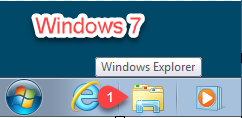
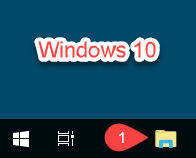
1. Open Windows Explorer on the computer the images were taken on. You can click on the Windows Explorer Link (1) to open this up.
2. Copy & Paste directory below in Windows Explorer (1)
%systemdrive%\ProgramData\Medicor Imaging\MiPACS Dental Enterprise Viewer 3

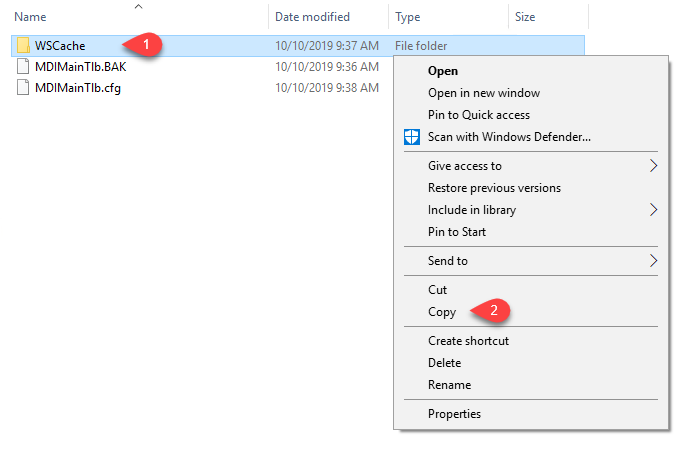
3. Right Click on WSCache or WSCache2 (1) then click Copy (2)
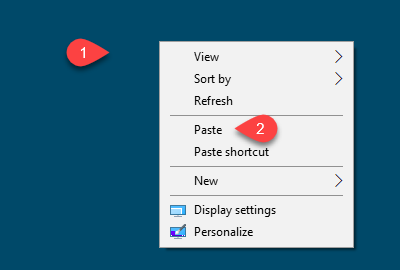
4. Right click on Desktop (1) and click Paste (2)
5. Contact help@firstchoicedental.com and let us know this happened.
More Information
NOTE: You can also download this batch file attached to this document and run that to do the same thing as the guide. The file is below.
Comments