
Challenge
InVivio software is not available on all computers, but contains information that needs to be viewed on another computer.
Cause
The CBCT Scans save to another database that doesn't link up with our main imaging software.
Solution
1. Open Cliniview (1)

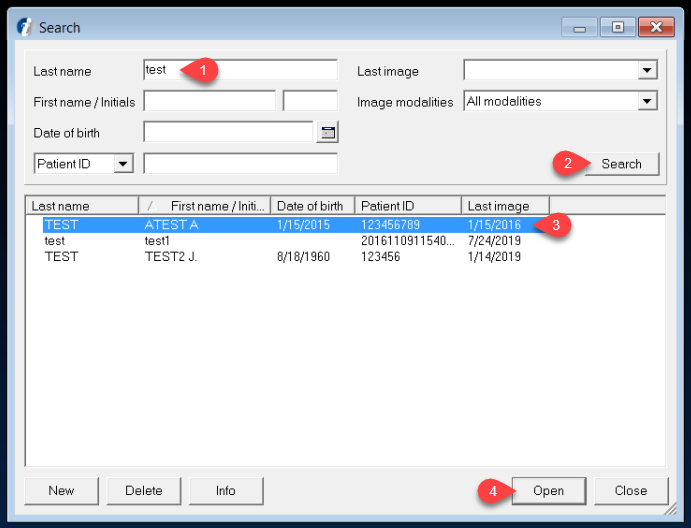
2. Search for Patient Record (1) click Search (2) then Select Patient Record (3) and click Open (4)
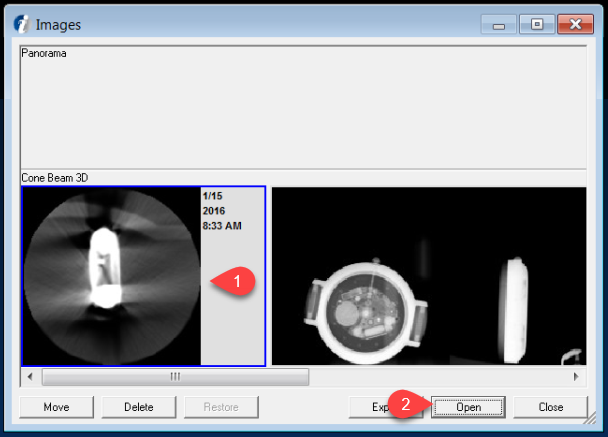
3. Select Cone Bean Scan (1) and click Open (2)
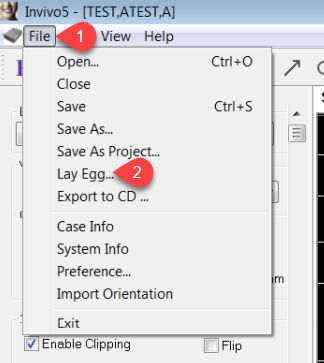
4. After Invivio5 Opens, click on File (1) then click Lay Egg... (2)
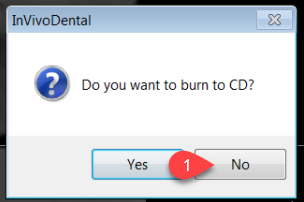
5. On "Do you want to burn to CD?" click No (1)
6. In the "Laying an Egg" save dialog box click on Computer (1), Ortho CT Scans (2). Create a New Folder (3) and name it with Patient Name (4) then click Open (5)

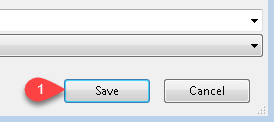
7. In the next screen, select Save (1)
8. Now the Standalone viewer (Egg) is available on the network share and viewable by all users who have access to the share.
More Information
Comments