
Challenge
Instrumentarium SnapShot Sensor is not functioning as intended. Here are a few items that can be done to help fix the problem immediately.
Cause
Sometimes there are software or hardware problems that occur that require manual input to get these sensors working.
Solutions
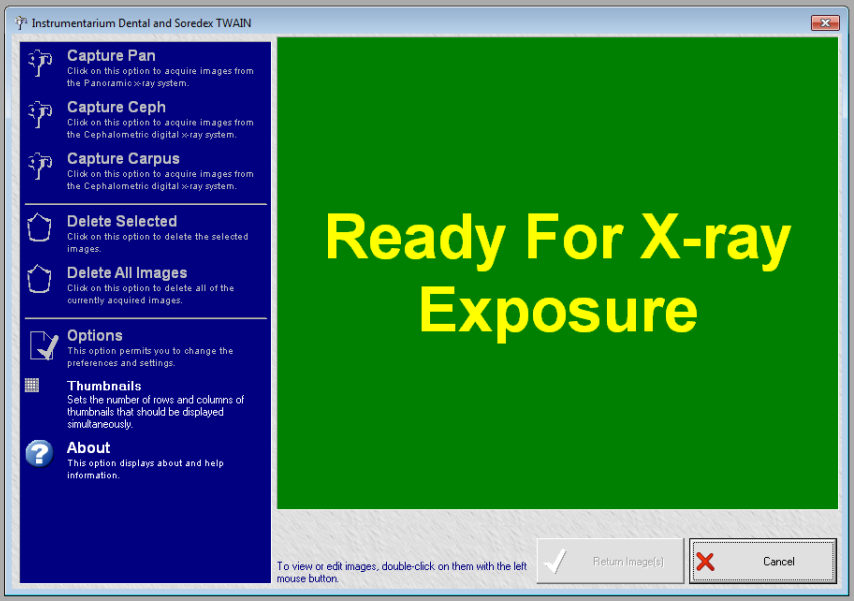
Option 1: Pano Hardware is connected and activated in MiPACS and is ready to take Image but Pano is not responding
1. MiPACS is Activating the Pano Hardware but nothing is happening when the Exposure button is pressed.
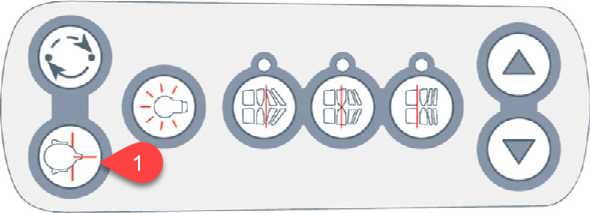
2. Check to see if the unit has been reset to the Patient Positioning location. Do this Press and hold the button with the 1 arrow until unit has stopped moving.
3. Attempt to take Pano again.
Option 2: Pano Hardware is not being recognized by MiPACS and not activating
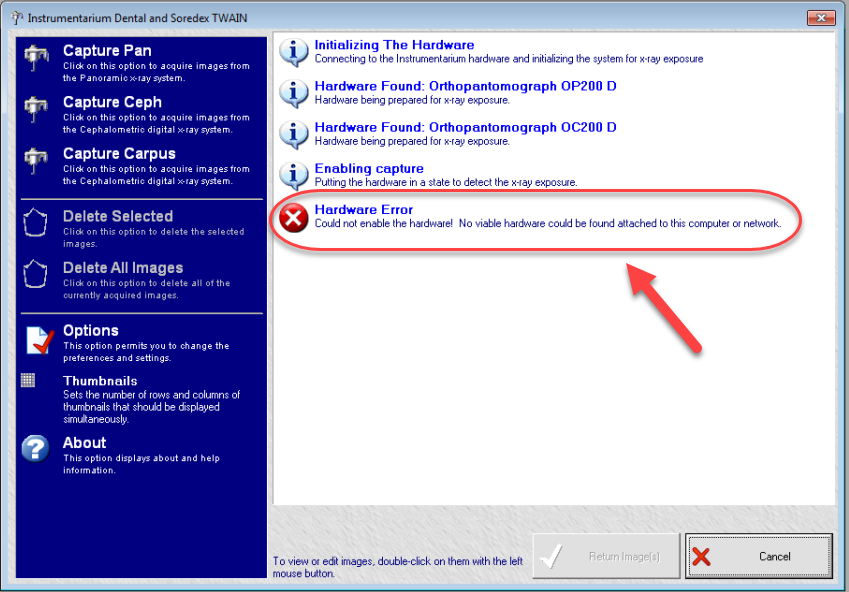
1. When activating the Pano Hardware, MiPACS is not finding the Pano Hardware and an error message similar to the one below shows up.
2. Reboot the Pano Computer
a. Windows 10
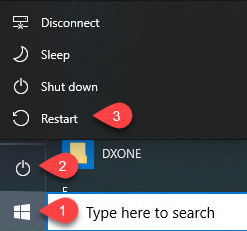
i. Click Start Button (1) then the Power Button Icon (2) followed by Restart (3)
b. Reboot Windows 7
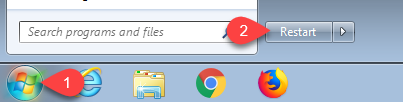
ii. Click on the Start Orb (1) followed by Restart (2)
3. Restart the Pano Hardware
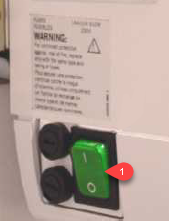
a. On the back of the Pano hardware, there is a Power Switch (1) (Usually green). Switch it off for a few seconds, then turn it back on.
More Information
If none of these resolve the issue, please contact IT at help@firstchoicedental.com
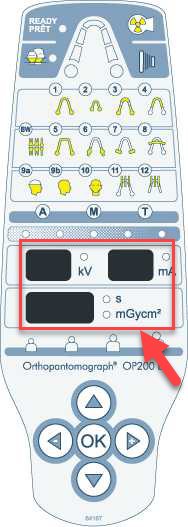
In the box below, there might be a series error codes. Please provide this to IT to further help diagnose the problem.
Comments