
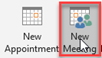
1. In Microsoft Outlook, create a new meeting by opening your calendar and click “New Meeting”.
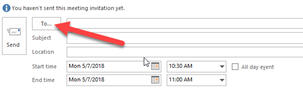
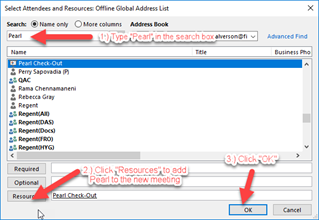
2. Click the “To…” button to add attendees and resources. Type “Pearl” in the search window and click the “Resources” button to add “Pearl Check-Out” as a resource, then click “OK”.
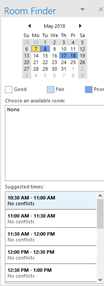
3. You can use the “Scheduling Assistant” button on the toolbar or “Room Finder” on the right side of the appointment page to see if your required time slot is available.
4. Complete the rest of your details – Subject, Location, Start & End time, etc.
5. Click “Send”
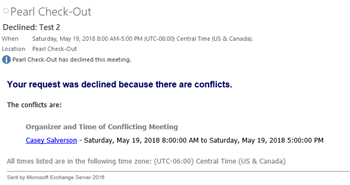
6. You will receive an automated response if the requested time and date are available:
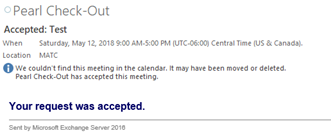
***NOTE:*** Suggestions are not provided for non-working hours – Saturday & Sunday and anything outside of 8am-5pm M-F. You will not be able to see live data in the Room Finder, but the system will still send out accepted or declined emails if the resource is already booked.
Comments