
Challenge
The printer you want to print to is not printing and there are several documents in the printer's queue.
Cause
A document sent to the printer has caused the printer stop printing.
Solution
Windows 7
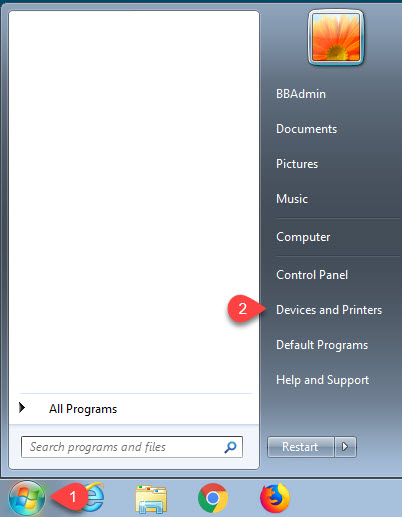
1. Click on the Start Button (1) then click on Devices and Printers (2)
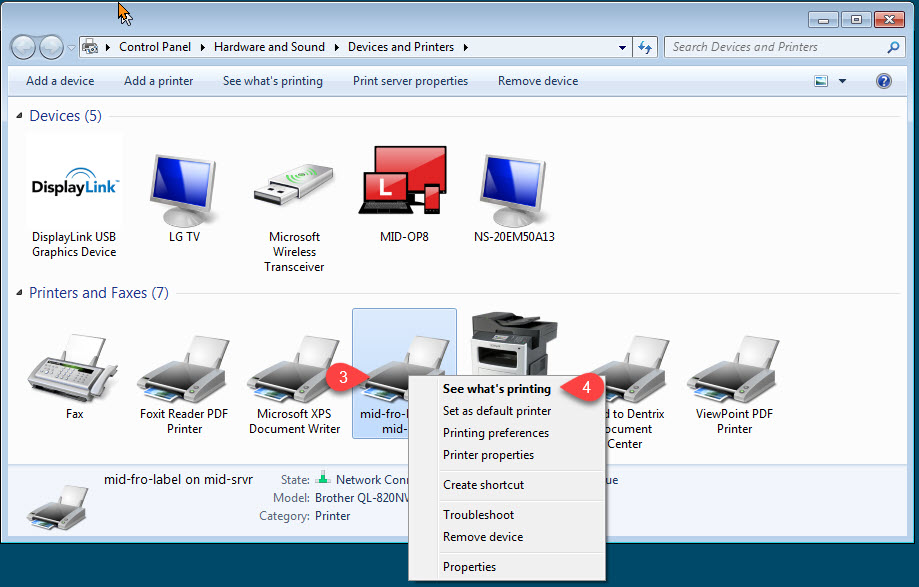
2. Right Click on Printer (3) you want to clear the queue of & click See what's printing (4)
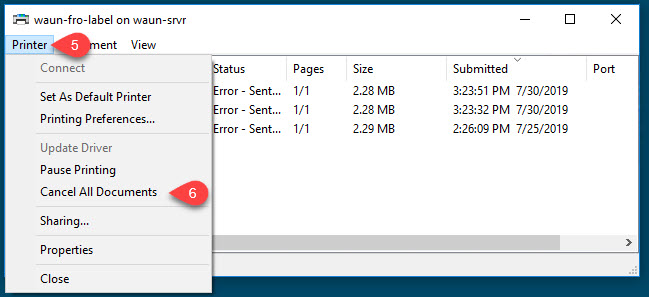
3. Click Printer (5) drop down menu & click Cancel All Documents (6)
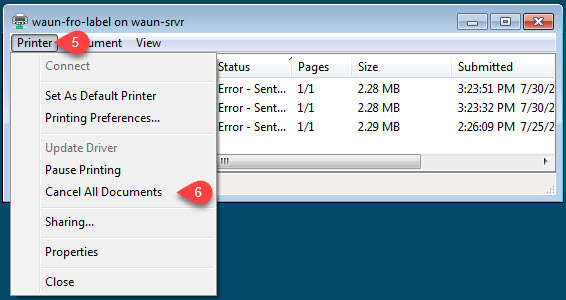
4. All documents should be cleared and you should be able to print.
Windows 10
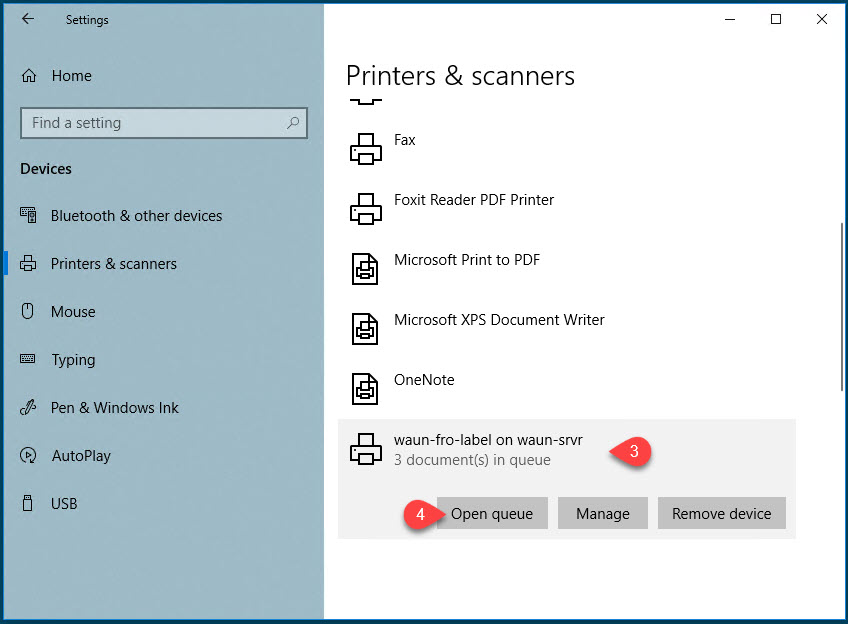
1. Click Start Button & type Printers (Until Printers & Scanners shows up). Select Printers & Scanners (2)

2. Find Printer in List (3) & click Open queue (4)
3. Select Printer (5) drop down & click Cancel All Documents (6)
4. All documents should be cleared and you should be able to print.
More Information
If you get a permissions error please let help@firstchoicedental.com know and we will get permissions updated. Please provide us with the printer name to help us fix the problem.
Comments