
Challenge
Ortho2 ViewPoint requires each user individually configure connection to database server before using Ortho2 ViewPoint.
Cause
Ortho2's database has moved to a new server causing users to update their OrthoNet settings to point to the correct server. If you've used Ortho2 ViewPoint on a computer before, you'll need to update the Server Name setting in OrthoNet, if you've never used a computer you'll need to configure OrthoNet's settings.
Solution
Windows 7:
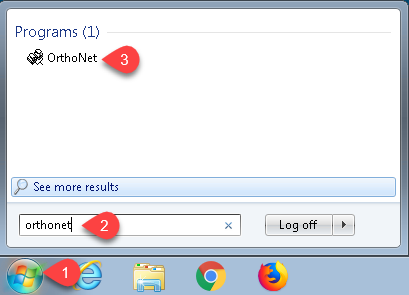
1. Click Start Orb (1) then type "OrthoNet" (2) then click on OrthoNet (3)
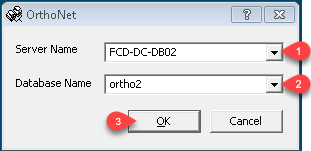
2. In OrthoNet Select the Following Options from the drop down menus
a. Server Name: FCD-DC-DB02 (1)
b. Database Name: ortho2 (2)
c. Click OK (3)
3. Open Ortho2 ViewPoint
Windows 10:
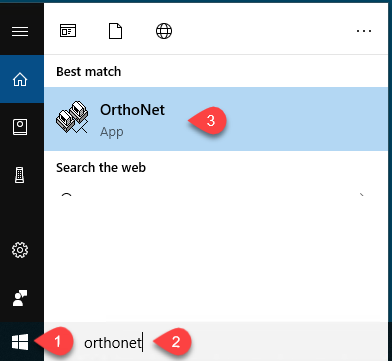
1. Click Start Button (1) then type "OrthoNet" (2) then click on OrthoNet (3)
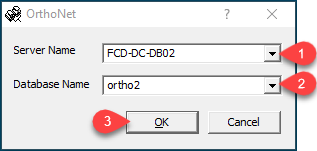
2. In OrthoNet Select the Following Options from the drop down menus
a. Server Name: FCD-DC-DB02 (1)
b. Database Name: ortho2 (2)
c. Click OK (3)
3. Open Ortho2 ViewPoint
More Information
Not all of these settings may need to be updated, depending on if you've used Ortho2 ViewPoint on this computer under your username before.
If you have any problems accessing Ortho2 ViewPoint on this computer please contact help@firstchoicedental.com
Comments