
Challenge
Schick Sensor is not functioning as intended. Here are a few items that can be done to help fix the problem immediately.
Cause
Sometimes there are software or hardware problems that occur that require manual input to get these sensors working.
Solutions
Option 1: Force MiPACS to select Schick Sensor
A. Open MiPACS
B. In the Taskbar (By the clock) hit the Up Arrow (1) & double click on Autodetect Monitor (2)

C. Select Sensor in list (3) then click Select Device (4) then Hide Monitor (5)
a. We have three different types of Schick Sensors at FCD, one of these should show up in the list. CDR 2000, CDR HS & CDR Elite
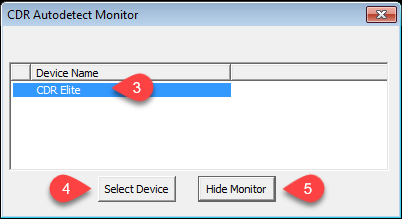
b. If there is nothing in the list, attempt Option 2.
Option 2: Reseat all parts of Schick Sensor
A. Close out of MiPACS
B. Disconnect X-Ray Sensor from USB port on wall.
a. Disconnect USB from Sensor Remote (Square middle part).
b. Disconnect Sensor from remote.
C. Reconnect all parts of the Sensor.
D. Plug back into USB port on wall
E. Open MiPACS.
Option 3: Reboot PC
1. Disconnect Sensor from USB Port.
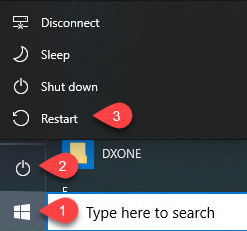
2. Reboot Windows 10
a. Click Start Button (1) then the Power Button Icon (2) followed by Restart (3)
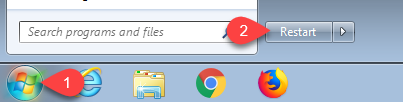
3. Reboot Windows 7
a. Click on the Start Orb (1) followed by Restart (2)
4. Reconnect Sensor into USB port on wall & open MiPACS and attempt to activate X-Ray Sensor.
More Information
These are fixes that might fix the problem if IT is unable to help right away.
Comments