
Challenge
Getting Laserfiche setup for new user at HQ.
Cause
A new user requires settings configured under their user account.
Solution
1. Open Laserfiche & log into repository.
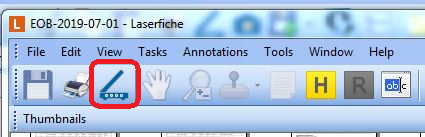
2. Open Scan tool.
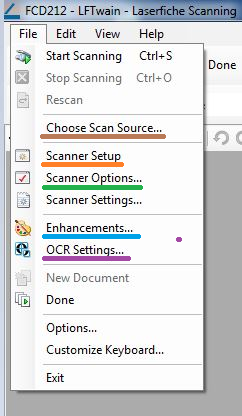
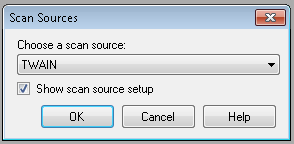
3. In the File drop down menu select "Choose Scan Source..." (Brown) & Select TWAIN.
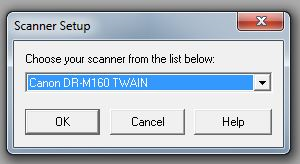
4. In the File drop down menu select "Scanner Setup" (Orange) & select scanner TWAIN that you are using. (In this case, we select "Canon DR-M160 TWAIN."
a. Do NOT use WIA driver.
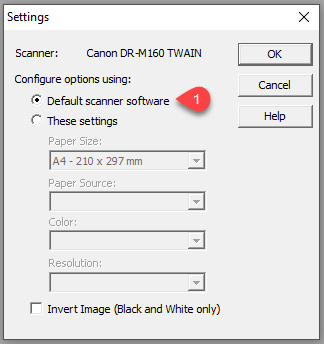
5. In the File drop down menu select "Scanner Options..." (Green). Configure settings to match image.
a. Select Default Scanner Software (1)
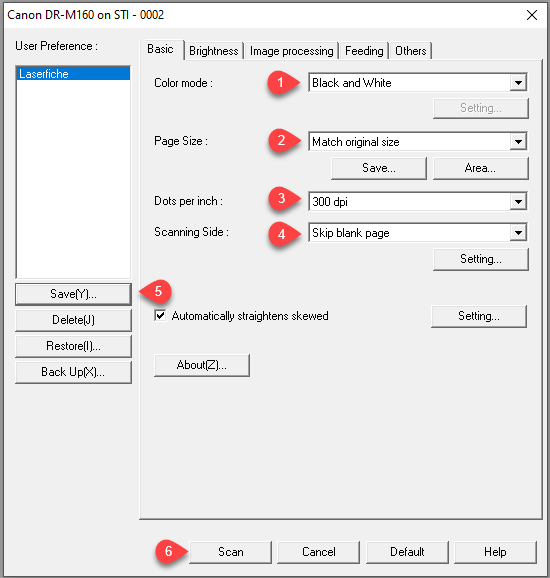
6. Click Scan document to bringing up Canon DR-M160 Software.
a. Color Mode (1): Black and White
b. Page Size (2): Match Original Size
c. Dots per inch (3): 300 dpi
d. Scanning Side (4): Skip Blank Page
e. Save (5): Save with logical name
f. Scan (6) test document & Delete.
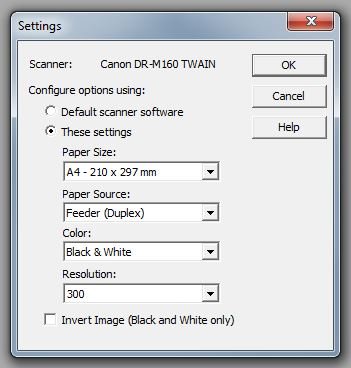
7. In the File drop down menu select "Scanner Options..." (Green). Configure settings to match image.
a. Select "These Settings" radio button.
b. Paper Size: A4 - 210 x 297 mm
c. Paper Source: Feeder (Duplex)
d. Color: Black & White
e. Resolution: 300
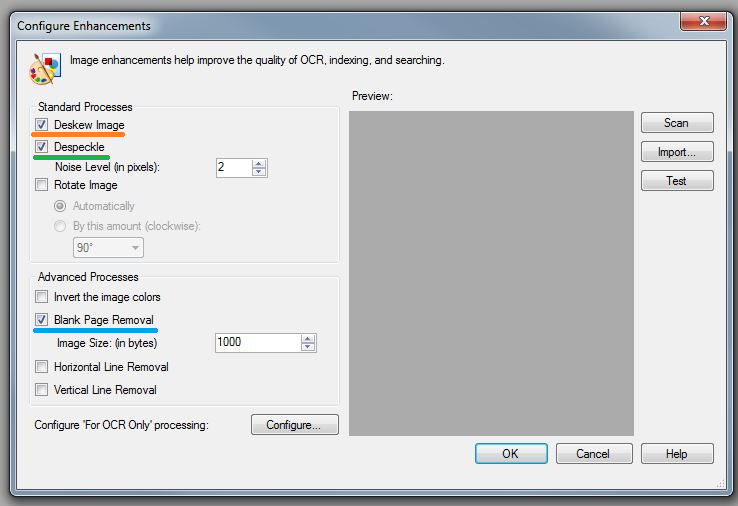
8. In the File drop down menu select "Enhancements" (Blue)
a. Check "Deskew Image" (Orange)
b. Check "Despeckle" (Green) & Leave Noise level at 2
c. Check "Blank Page Removal" (Blue) & set Image Size to 1000 Bytes.
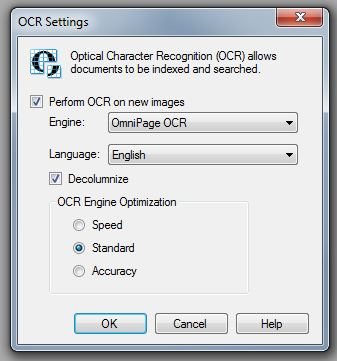
9. In the File drop down menu select " OCR Settings..." (Purple)
a. Check "Perform OCR on new images"
i. Engine: OmniPage OCR
ii. Language: English
b. Check "Decolumnize"
c. OCR Engine Optimization: Standard
More Information
ENTER MORE INFORMATION IF APPLICABLE - i.e. - Please remember to close out all applications before leaving for the day.
Comments