
Challenge
Dentrix uses Adobe Flash for printing in the Treatment Planner & Adobe shut it down on 01/12/2021.
Cause
Adobe cut off all uses of Flash thereby rendering some aspects of some software packages unusable.
Solution
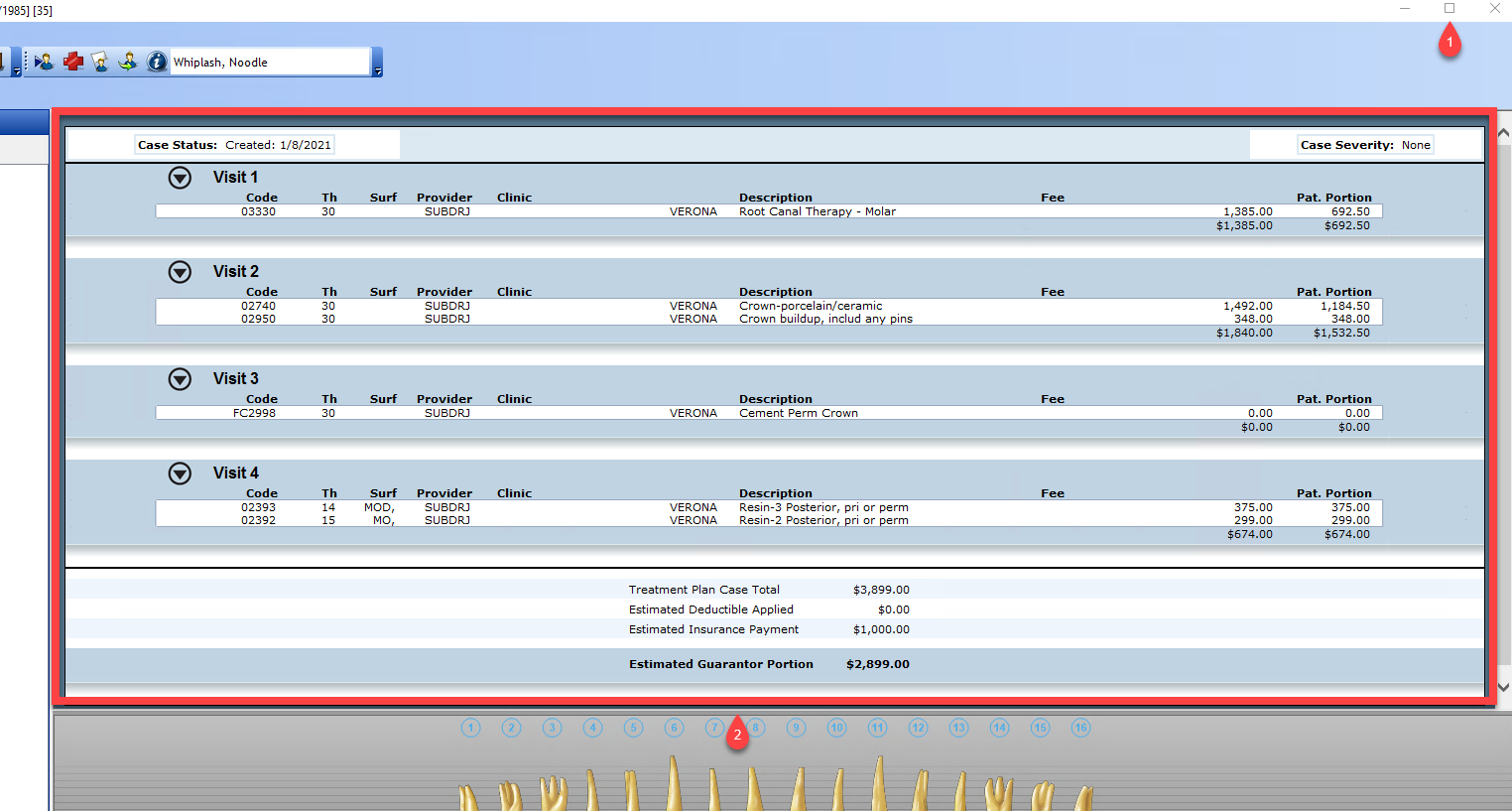
1. Configure the Treatment Planner window so all relevant information can be seen.
a. Make sure to get all of the information that needs to be seen on the screen.
i. You may need to Maximize the Windows (1), move the Tooth Chart to a smaller portion of the screen (2) or just adjust the screen size.
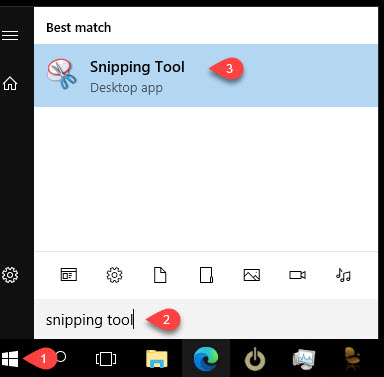
2. Open click the Start Button (1) then type "Snipping Tool" (2) then click on Snipping Tool (3)
3. In the Snipping Tool Click New (1)
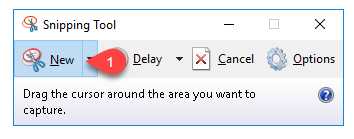
4. Click & Drag cursor over the Treatment Planner that needs to be printed & let go when everything is in the box.
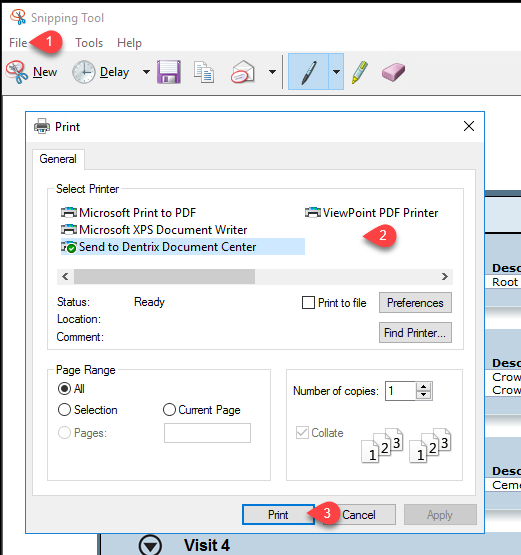
5. Click File (1) then "Print..." then, in the Print Dialog box, select your Printer (2) then Click Print (3)
More Information
n/a
Comments